
Azure Load Balancer Terraform deployments might look simple at first — define a frontend IP, create a backend pool, add a probe… but there’s a catch. When you think about deploying an Azure Load Balancer with Terraform, it feels pretty straightforward: define a frontend IP, create a backend pool, add a health probe, and wire up a load-balancing rule.
But here’s the catch: in Azure, your backends will always show as unhealthy unless you configure some “hidden” network rules. This is where many engineers get stuck when they first deploy a Standard Load Balancer.
In this post, I’ll walk you through the Terraform code, explain the mystery IP 168.63.129.16, and show how to make your health probes work properly.
Azure Load Balancer Terraform Architecture
On the right you can see Azure environment we build in Module 03 of the Multicloud Foundations course.
The key components are:
foggykitchen_vnet – a virtual network with public and private subnets
foggykitchen_bastion_vm – for secure SSH administration
foggykitchen_backend_vm1..X – application servers behind the load balancer
foggykitchen_loadbalancer – Standard LB distributing traffic
foggykitchen_frontend_nsg / backend_nsg – NSGs controlling inbound access
foggykitchen_nat_gw – for outbound connectivity of private backend VMs
As shown above, the backend VMs sit behind foggykitchen_backend_nsg, which must explicitly allow probe traffic from AzureLoadBalancer.
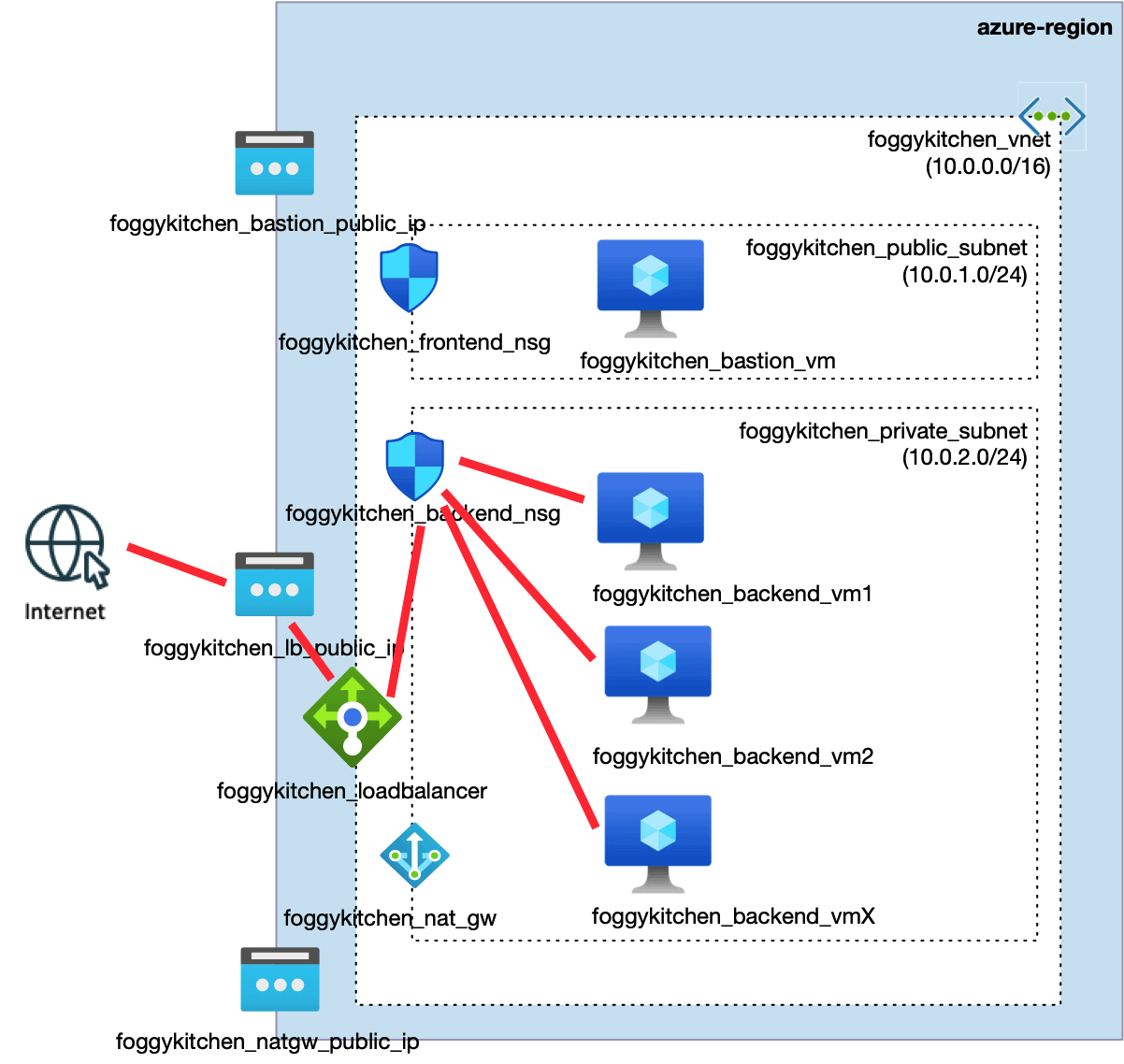
Figure 1: Traffic flows that must be allowed in the backend NSG.
Red arrows indicate two critical inbound flows:
(1) health probe traffic from the AzureLoadBalancer service tag (168.63.129.16), and
(2) client traffic coming from the Internet through the public frontend IP.
Step 1. Azure Load Balancer Terraform Code Example
In our Terraform configuration, the Load Balancer looks like this:
resource "azurerm_lb" "web_lb" {
  name                = "foggykitchen-lb"
  location            = azurerm_resource_group.rg.location
  resource_group_name = azurerm_resource_group.rg.name
  sku                 = "Standard"
  frontend_ip_configuration {
    name                 = "PublicFrontend"
    public_ip_address_id = azurerm_public_ip.web_lb_pip.id
  }
}
resource "azurerm_lb_backend_address_pool" "web_lb_backend" {
  name                = "web-backend"
  loadbalancer_id     = azurerm_lb.web_lb.id
  resource_group_name = azurerm_resource_group.rg.name
}
resource "azurerm_lb_probe" "web_lb_probe" {
  name                = "http-probe"
  protocol            = "Tcp"
  port                = 80
  loadbalancer_id     = azurerm_lb.web_lb.id
  resource_group_name = azurerm_resource_group.rg.name
}
So far, so good: a frontend IP, backend pool, and a probe. But unless we fix the NSG, this probe will fail.
Step 2. The “Hidden” Traffic Source
Azure Load Balancer involves two distinct inbound traffic flows that must be allowed in the backend NSG:
Health probe traffic
Originates from the service tag
AzureLoadBalancer, which corresponds to the special IP168.63.129.16.Without this, your LB probe will fail and the backend will remain unhealthy.
Client traffic
Comes from the client’s public IP, not from the LB itself.
This is a crucial detail:
AzureLoadBalancerdoes not cover real user traffic. If you don’t allow traffic fromInternet(or more specific sources), users won’t reach your app.
Step 3. NSG Rules for Health Probes and Client Traffic
A minimal NSG configuration for your backend subnet or NIC should contain:
Health probe rule (one of the two options is enough):
Recommended – using service tag:
resource "azurerm_network_security_rule" "allow_lb_probe" {
  name                        = "allow-lb-probe"
  priority                    = 100
  direction                   = "Inbound"
  access                      = "Allow"
  protocol                    = "Tcp"
  source_port_range           = "*"
  destination_port_range      = "80"
  source_address_prefix       = "AzureLoadBalancer"
  destination_address_prefix  = "*"
  resource_group_name         = azurerm_resource_group.rg.name
  network_security_group_name = azurerm_network_security_group.web_nsg.name
  description                 = "Allow Azure Load Balancer health probes (168.63.129.16)"
}
Alternative – using explicit IP (functionally equivalent):
resource "azurerm_network_security_rule" "allow_health_probe_ip" {
  name                        = "allow-health-probe-ip"
  priority                    = 1002
  direction                   = "Inbound"
  access                      = "Allow"
  protocol                    = "Tcp"
  source_port_range           = "*"
  destination_port_range      = "80"
  source_address_prefix       = "168.63.129.16"
  destination_address_prefix  = "*"
  resource_group_name         = azurerm_resource_group.rg.name
  network_security_group_name = azurerm_network_security_group.backend_nsg.name
}
Note — Using both rules (service tag + explicit IP)
You can allow health probes either via the AzureLoadBalancer service tag or the explicit IP 168.63.129.16.
In my Terraform I keep both rules:
source_address_prefix = "AzureLoadBalancer"(recommended, future-proof), andsource_address_prefix = "168.63.129.16"(explicit, highly readable),
because in stricter environments (custom NSGs, subnet + NIC NSGs, compliance templates) keeping both often prevents accidental blocks. Functionally they allow the same probe traffic; having both is redundant but harmless and sometimes pragmatic.
Client traffic rule:
resource "azurerm_network_security_rule" "allow_http_from_internet" {
  name                        = "allow-http-from-internet"
  priority                    = 1003
  direction                   = "Inbound"
  access                      = "Allow"
  protocol                    = "Tcp"
  source_port_range           = "*"
  destination_port_range      = "80"
  source_address_prefix       = "Internet"
  destination_address_prefix  = "*"
  resource_group_name         = azurerm_resource_group.rg.name
  network_security_group_name = azurerm_network_security_group.backend_nsg.name
}
This rule is what actually allows end users to reach your backend through the Load Balancer. Without it, even healthy probes won’t help.
Step 4. Why This Confuses People
Many engineers assume that AzureLoadBalancer covers both probe and data traffic — but it only covers probe traffic from 168.63.129.16. Real client traffic is preserved end-to-end. That’s why you need both rules.
Also note that by default, NSGs include a built-in AllowAzureLoadBalancerInbound rule (priority 65001). If you haven’t overridden it, you might not need to define your own probe rule — unless you’re being explicit or tightening defaults.
Step 5. Multicloud Perspective
In Azure, you must explicitly allow probe traffic and client traffic separately.
In OCI, health checks are handled differently at the service level, so you don’t have to deal with a “magic IP” like 168.63.129.16.
This difference illustrates why Terraform code is not 100% portable between cloud providers. The IaC looks similar, but the network semantics differ.
References
For more details, see the official Microsoft documentation:
Conclusion
Deploying an Azure Load Balancer with Terraform is easy on paper but tricky in practice. Without allowing probe traffic (AzureLoadBalancer or 168.63.129.16) and client traffic (Internet), your backend will never pass health checks or serve requests.
By combining the right NSG rules and understanding Azure’s network semantics, you can build a robust, production-grade setup. Deploying an Azure Load Balancer Terraform configuration correctly requires both probe and client NSG rules.
👉 Want to see this scenario deployed side-by-side with OCI Load Balancer? Check out my course:
Multicloud Foundations: Azure & OCI deployed with Terraform/OpenTofu
🚀 Take this Azure Load Balancer Example Further
Learn how to deploy full multicloud architectures in Azure & OCI with Terraform — including NSGs, Load Balancers, compute and private networking — step by step.
👉 Explore the Course


