Azure File Storage NFS Terraform is a common scenario when you want to secure shared storage with network rules and Private Endpoint. Azure File Storage is a powerful service for sharing files across VMs. But in enterprise or multicloud environments, exposing a storage account publicly is rarely acceptable.
In this post, I’ll show you how to:
Deploy Azure Files (NFS) on Premium FileStorage
Restrict access with network rules
Use a Private Endpoint for private-only connectivity
Automate testing with remote-exec
Avoid a common Terraform/OpenTofu destroy failure with a simple trick
This example is based on the FoggyKitchen multicloud training repo (Module 04: Storage).
Why NFS on Azure Files?
Azure Files supports both SMB and NFS. With NFS you get:
Native Linux compatibility
High throughput and low latency (Premium tier)
Easy sharing of application data or scratch space across multiple VMs
The challenge? Making it secure and private — so no traffic flows over the public internet.
Architecture Overview
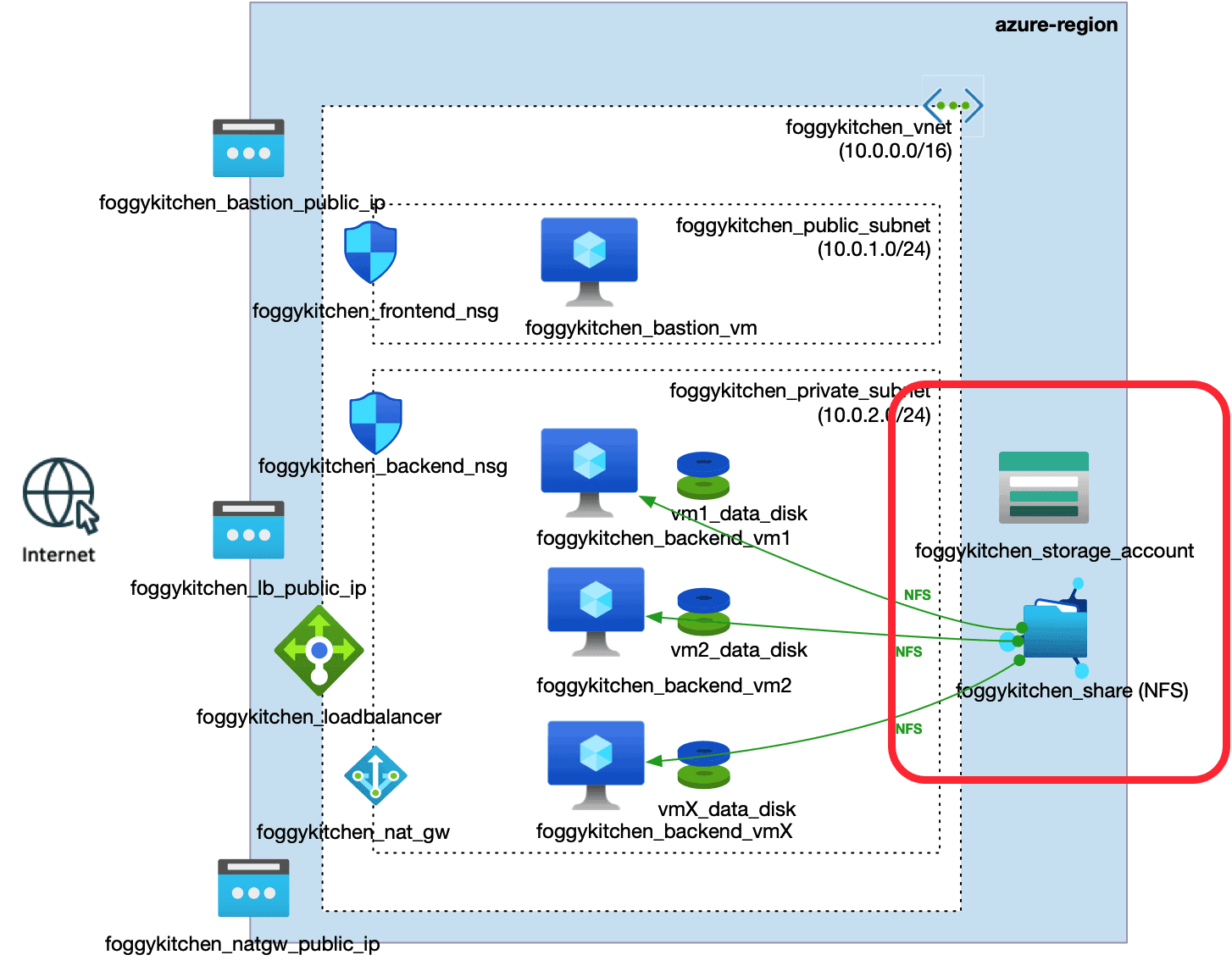
We’ll deploy and secure Azure File Storage with Terraform:
Storage Account (Premium FileStorage, LRS)
Purpose-built for Azure Files with NFS protocol. Optimized for low latency and high throughput.NFS Share
A shared filesystem accessible by Linux VMs. Mounted over the private subnet only.Network Security Rules
Default deny policy. Access is explicitly restricted to our private subnet. Optional admin IP can be whitelisted for management or destroy operations.Private Endpoint
Maps the storage account to a private IP inside the VNet, ensuring all traffic stays internal.Private DNS Zone (optional but recommended)
Resolvesprivatelink.file.core.windows.netto the private endpoint. Simplifies mounting from Linux VMs without hardcoding IPs.Validation with Terraform remote-exec
After provisioning, a VM automatically mounts the NFS share and confirms the mount is active.
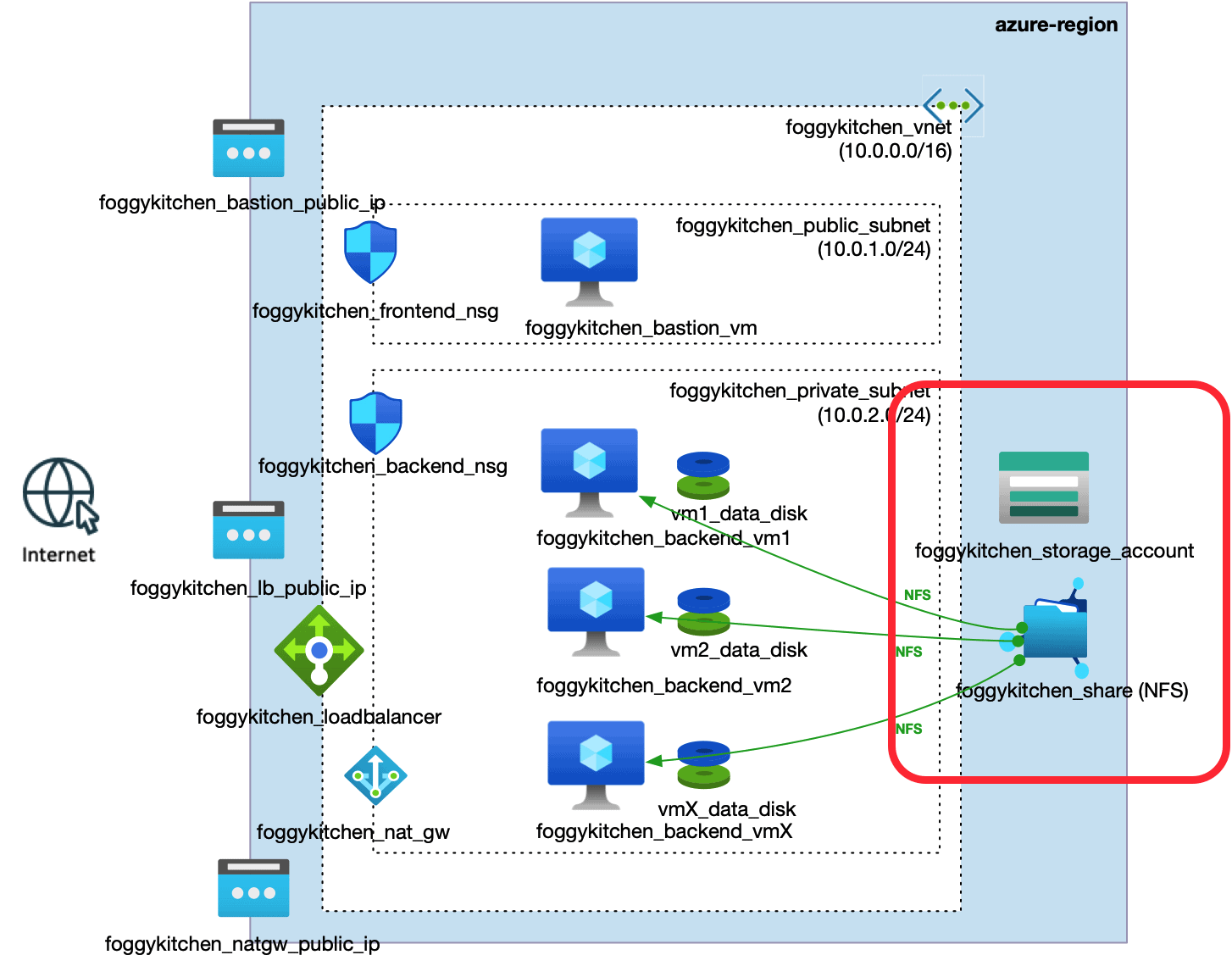
Figure 1. Secure deployment of Azure File Storage (NFS) with Private Endpoint.
Virtual machines in the private subnet mount the NFS share through a Private Endpoint, while network rules enforce access only from inside the VNet (plus optional admin IP).
Deploying Azure File Storage NFS Terraform
Below are the main Terraform snippets used to deploy Azure File Storage with NFS and a Private Endpoint.
All examples come directly from the FoggyKitchen multicloud repository (Module 04: Storage).
In the blog I’ll highlight only the essential resources, while the full working code — including variables, outputs, and remote-exec — is available in the GitHub repo.
Storage Account
resource "azurerm_storage_account" "foggykitchen_sa" {
  name                       = "foggykitchenstorage"
  resource_group_name        = azurerm_resource_group.foggykitchen_rg.name
  location                   = azurerm_resource_group.foggykitchen_rg.location
  account_tier               = "Premium"
  account_replication_type   = "LRS"
  account_kind               = "FileStorage"
  access_tier                = "Hot"
  https_traffic_only_enabled = false # NFS doesn’t use HTTPS
}
➡️ Creates a Premium FileStorage account with NFS support. HTTPS-only traffic is disabled, since NFS does not use HTTPS.
NFS Share
resource "azurerm_storage_share" "foggykitchen_share" {
  name                 = "sharedfs"
  storage_account_name = azurerm_storage_account.foggykitchen_sa.name
  quota                = var.storage_quota_gb
  enabled_protocol     = "NFS"
}
➡️ Defines an NFS share inside the storage account, ready to be mounted by Linux VMs.
Network Rules
variable "enable_admin_public_fallback" { type = bool, default = false }
variable "my_public_ip" { type = string, default = "" }
locals {
  ip_rules_effective = var.enable_admin_public_fallback && var.my_public_ip != "" ? [var.my_public_ip] : []
}
resource "azurerm_storage_account_network_rules" "foggykitchen_nfs_nsg" {
  storage_account_id          = azurerm_storage_account.foggykitchen_sa.id
  default_action              = "Deny"
  virtual_network_subnet_ids  = [azurerm_subnet.foggykitchen_private_subnet.id]
  ip_rules                    = local.ip_rules_effective
  bypass                      = ["AzureServices"]
  depends_on = [
    azurerm_subnet.foggykitchen_private_subnet,
    azurerm_storage_account.foggykitchen_sa
  ]
}
➡️ Locks down the storage account: by default all public access is denied, only the private subnet (and optional admin IP) is allowed.
Private Endpoint
resource "azurerm_private_endpoint" "foggykitchen_storage_pe" {
  name                = "foggykitchen-storage-pe"
  location            = azurerm_resource_group.foggykitchen_rg.location
  resource_group_name = azurerm_resource_group.foggykitchen_rg.name
  subnet_id           = azurerm_subnet.foggykitchen_private_subnet.id
  private_service_connection {
    name                           = "foggykitchen-storage-psc"
    is_manual_connection           = false
    private_connection_resource_id = azurerm_storage_account.foggykitchen_sa.id
    subresource_names              = ["file"]
  }
  depends_on = [
    azurerm_storage_account_network_rules.foggykitchen_nfs_nsg
  ]
}
➡️ Connects the storage account to the VNet, mapping it to a private IP so traffic never leaves Azure’s internal network.
Mounting the NFS share
From a Linux VM inside the subnet:
sudo mkdir -p /mnt/sharedfs
sudo mount -t nfs -o vers=4.1,sec=sys
  foggykitchenstorage.privatelink.file.core.windows.net:/foggykitchenstorage/sharedfs
  /mnt/sharedfs
If you use Private DNS for privatelink.file.core.windows.net, the VM will resolve the private IP automatically.
Automated verification with remote-exec
In the FoggyKitchen repo I also added a remote-exec provisioner to automatically test the NFS mount right after deployment.
provisioner "remote-exec" {
  inline = [
    "sudo mkdir -p /mnt/sharedfs",
    "sudo mount -t nfs -o vers=4.1,sec=sys ${azurerm_storage_account.foggykitchen_sa.name}.privatelink.file.core.windows.net:/${azurerm_storage_account.foggykitchen_sa.name}/${azurerm_storage_share.foggykitchen_share.name} /mnt/sharedfs",
    "df -h | grep sharedfs"
  ]
}
👉 Full code reference: remote_UPDATED.tf (line 63)
This guarantees that your VM mounts the share through the Private Endpoint and confirms the mount is active (df -h).
⚡ Terraform gotcha: Why you may need your public IP
Here’s the tricky part.
When everything is locked to the VNet, Terraform works fine for apply. But when you run:
tofu destroy…it may fail. Why? Because the provider sometimes makes data-plane calls (e.g. deleting an NFS share) against the storage account. If you’re running Terraform from your laptop, outside the VNet, those calls are blocked by firewall rules.
👉 The trick: temporarily allow your public IP in the storage firewall:
ip_rules = [var.my_public_ip]Workflow
1. Enable the flag before destroy:
tofu apply -var enable_admin_public_fallback=true -var my_public_ip="X.Y.Z.W/32"2. Run destroy:
tofu destroy -var enable_admin_public_fallback=true -var my_public_ip="X.Y.Z.W/32"3. Everything deletes cleanly.
Best practices
Keep this disabled by default.
Use it only during teardown if you run Terraform outside the VNet.
Alternatively, run Terraform inside a VM in the VNet and you don’t need this fallback.
Deep dives related to this topic
If you’re already working with secure storage patterns in Azure, the following guides will help you strengthen the entire landing zone around networking, identity, and private connectivity:
🔹 Azure Bastion with Terraform
A secure alternative to public SSH/RDP — especially useful if you run Terraform inside the VNet.
🔹 Azure VNet Peering vs OCI Local Peering (Terraform)
Multicloud comparison of peering semantics and routing behavior.
🔹 Azure VNet with Terraform – Subnets, NSGs, and Routing
A foundational guide for designing clean, production-grade VNets in Terraform.
🔹 Azure Managed Disk with Terraform
Provisioning managed disks, attaching them to VMs, and automating the lifecycle.
🔹 Azure PostgreSQL Flexible Server with Terraform
How to deploy a database securely inside a VNet — great follow-up to NFS + Private Endpoint.
Summary
By combining Premium FileStorage (NFS), network rules, and Private Endpoint, you can build a secure storage layer for your workloads. Terraform automates the whole stack, with automated verification via remote-exec. And with the small destroy-time trick, you avoid frustrating teardown failures.
This storage module is just one step of a much broader multicloud journey.
👉 Ready to go deeper? Check out the full Multicloud Foundations: Azure & OCI deployed with Terraform/OpenTofu course.
There you’ll learn not just storage, but also networking, compute, load balancers, and databases — all deployed across both Azure and OCI.
🔒 Secure Multicloud Storage with Terraform
Learn how to automate not only Azure File Storage but also full multicloud deployments across Azure & OCI — networks, VMs, load balancers, and databases.
In this course you’ll build real architectures step by step, using the same GitHub repo as shown in this article. It’s 100% hands-on, with practical labs, code you can reuse, and explanations that go beyond a single module.
👉 Explore the Multicloud Course🔒 Lifetime • ⏱️ Self-paced • 🧪 Real labs